Creating Zines with Affinity
“Zine: a noncommercial, often homemade or online publication usually devoted to specialized and often unconventional subject matter”
Affinity’s powerful page layout tools make it easy—and affordable—to step into the world of zines, books, and print publishing. Whether you’re a beginner or a seasoned creator, you can design professional-quality layouts without breaking the bank.
Pair the free version of Affinity with budget-friendly printing services like MagCloud or Mixam, and you unlock exciting new ways to bring your ideas to life and share your work with the world.
Creating a Document in Affinity
Correctly setting up your document in Affinity is an essential first step in the design process.
Because books and zines are mechanically trimmed after printing, it’s important to plan for slight variations in cutting. This means you must carefully set your page size, margins, and bleed before you begin designing.
Although the basic concepts are the same, different publishers may use slightly different terms.
Page size refers to the final intended size of your printed piece after trimming is complete.
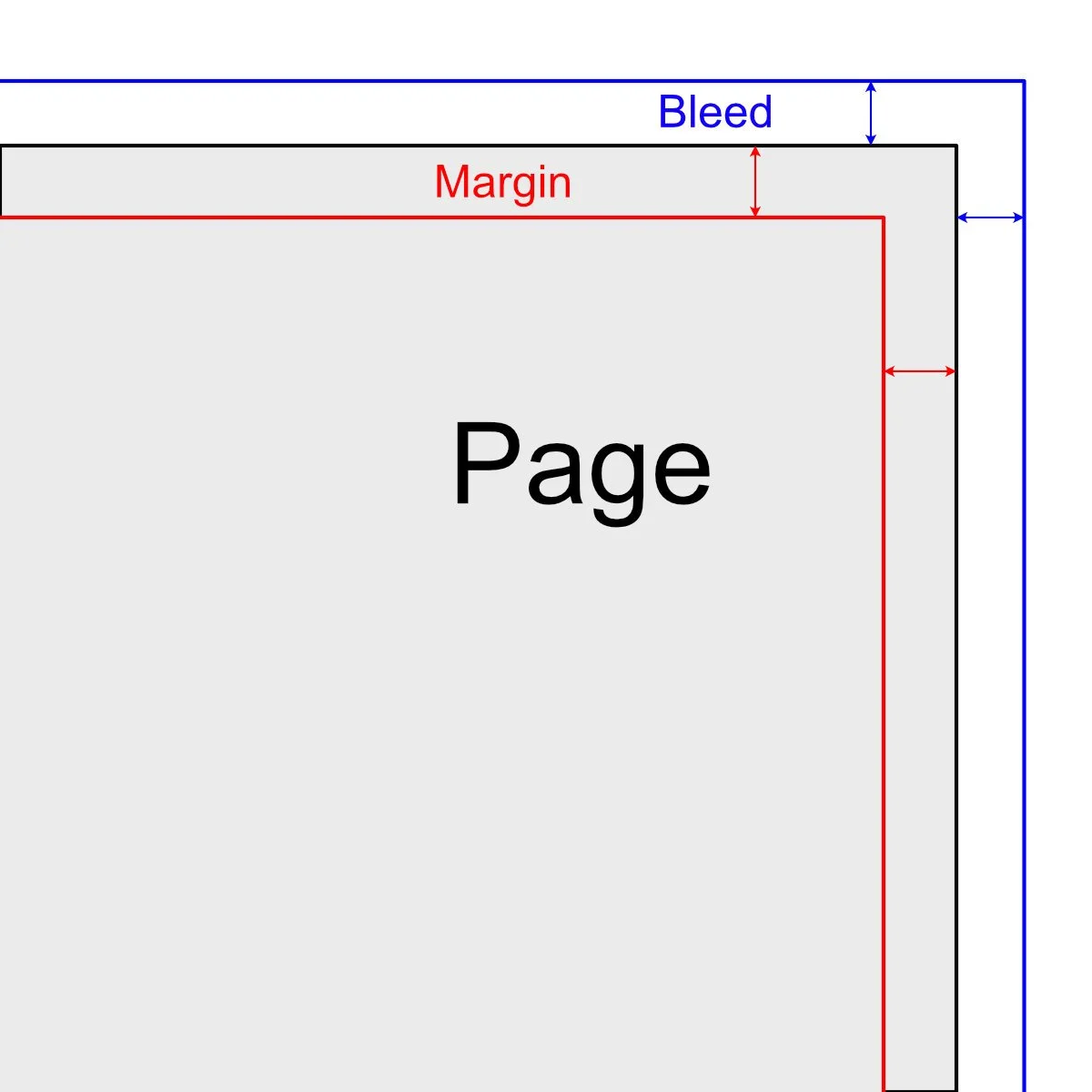
To allow for small cutting inaccuracies, designers add a bleed. Bleed is an extra area that extends beyond the page size. If your design includes images, colors, or graphics that reach the edge of the page, they must extend into this bleed area. This ensures that when the document is trimmed, no unwanted white edges appear.
One common point of confusion is that the page size plus the bleed determines the final PDF size you submit for printing.
Most publishers also require margins. Margins create a “safe zone” inside the page where important text and images should be placed. If trimming cuts slightly inside the intended page size, anything within this safe zone will remain unaffected.
Books and zines are typically laid out using facing pages, while single sheets such as posters or flyers use a single-page layout.
For facing-page documents, bleed and margin measurements are set as top, bottom, inner, and outer. For single-page documents, they are defined as top, bottom, left, and right.
In most facing-page layouts, there is usually no inner bleed, but there is an inner margin. This inner margin creates space for the gutter—the area where bound pages meet—so that important content is not lost in the binding.
The Affinity creation panel shows where these critical values are set
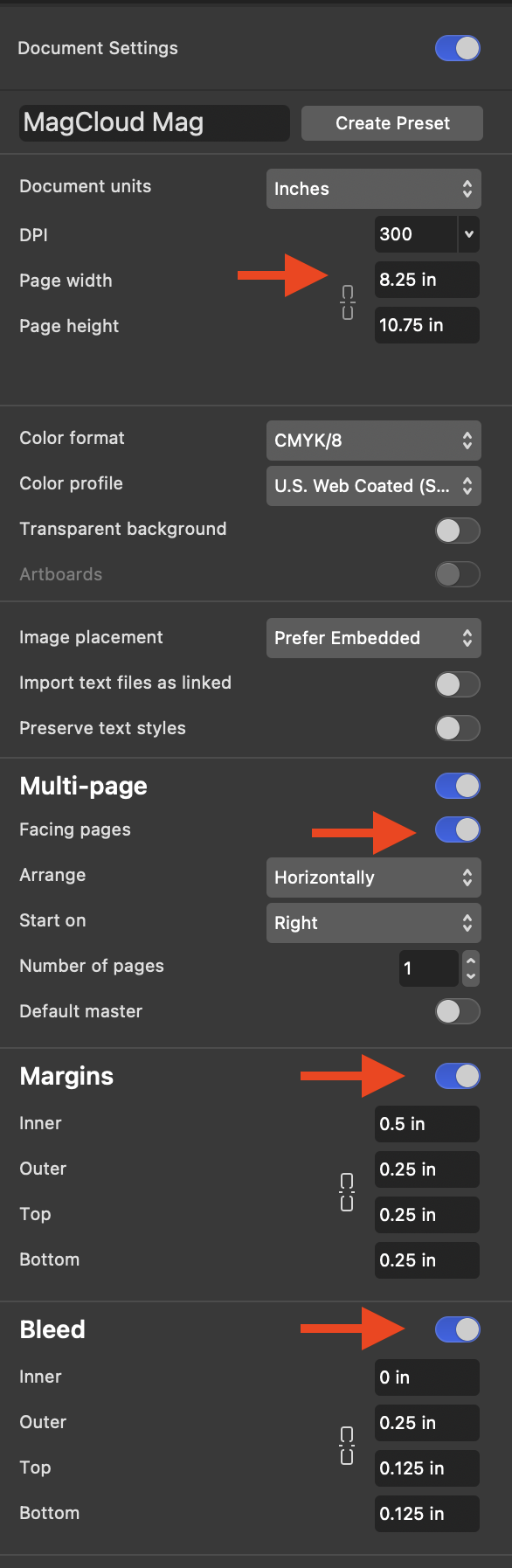
Document Creation Panel in Affinity
Dimensions for MagCloud Magazines
Vertical Format
Document Size: 8.25 x 10.75in
Bleed: Top, Bottom: 0.125in, Inner: 0in, Outer: 0.25in
Margin: Top, Bottom, Inner, Outer: 0.25in
Horizontal Format
Document Size: 10.75 x 8.25in
Bleed: Top, Bottom: 0.125in, Inner: 0in, Outer: 0.25in
Margin: Top, Bottom, Inner, Outer: 0.25in
Dimensions for MagCloud Digests
Vertical Format
Document Size: 5.25 x 8.25in
Bleed: Top, Bottom: 0.125in, Inner: 0in, Outer: 0.25in
Margin: Top, Bottom, Inner, Outer: 0.25in
Horizontal Format
Document Size: 8.25 x 5.25in
Bleed: Top, Bottom: 0.125in, Inner: 0in, Outer: 0.25in
Margin: Top, Bottom, Inner, Outer: 0.25in
Dimensions for MagCloud Square
8x8 Format
Document Size: 8 x 8in
Bleed: Top, Bottom: 0.125in, Inner: 0in, Outer: 0.25in
Margin: Top, Bottom, Inner, Outer: 0.25in
12x12 Format
Document Size: 12 x 12in
Bleed: Top, Bottom: 0.125in, Inner: 0in, Outer: 0.25in
Margin: Top, Bottom, Inner: 0.5in, Outer: 0.25in
Dimensions for MagCloud Tabloids
11x14 Format
Document Size: 11 x 14in
Bleed: Top, Bottom: 0.125in, Inner: 0in, Outer: 0.25in
Margin: Top, Bottom, Inner: 0.5in, Outer: 0.25in
14x11 Format
Document Size: 14 x 11in
Bleed: Top, Bottom: 0.125in, Inner: 0in, Outer: 0.25in
Margin: Top, Bottom, Inner: 0.5in, Outer: 0.25in
17x11 Format
Document Size: 17 x 11in
Bleed: Top, Bottom: 0.125in, Inner: 0in, Outer: 0.25in
Margin: Top, Bottom, Inner: 0.5in, Outer: 0.25in